Your recipes, finally tidy

From link to table, without the clutter.

Save recipes from websites and social media into one calm, cookbook-style collection. Then cook, shop and plan the week from it.

Coming soon to the App Store. Until then, it's free to try as a web app on iPhone, iPad and computer, and it works offline once you've opened it.
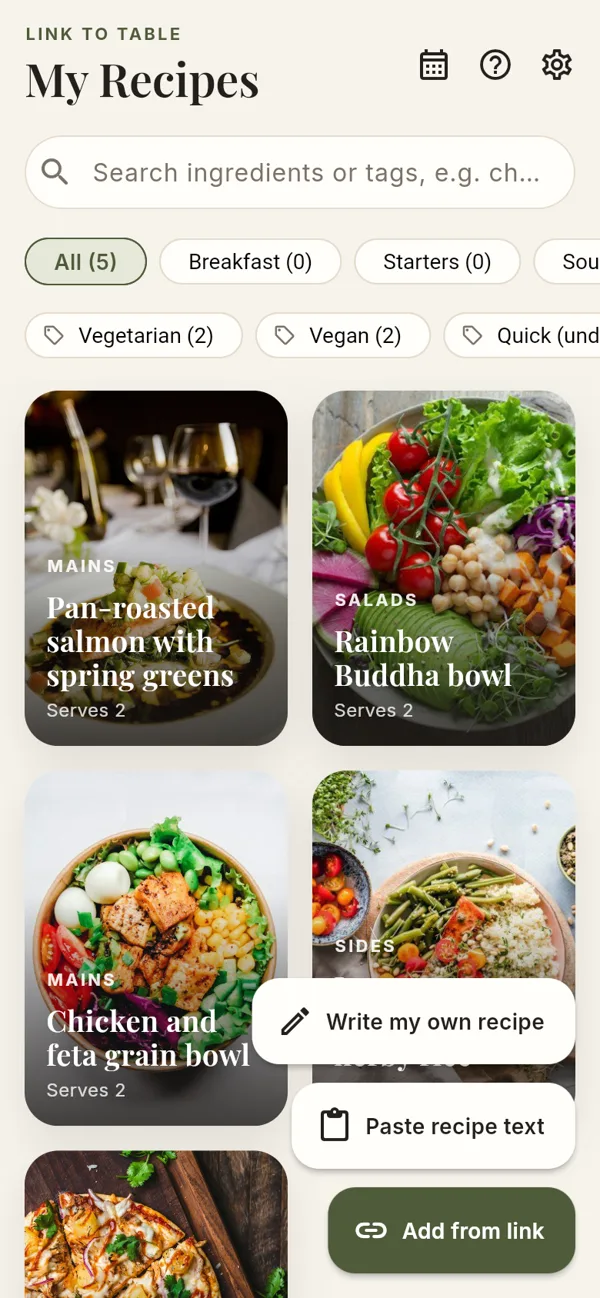
The Link to Table home screen showing a grid of recipes
What it does

Everything you need in the kitchen

No adverts, no life stories before the ingredients. Just your recipes, ready when you are.

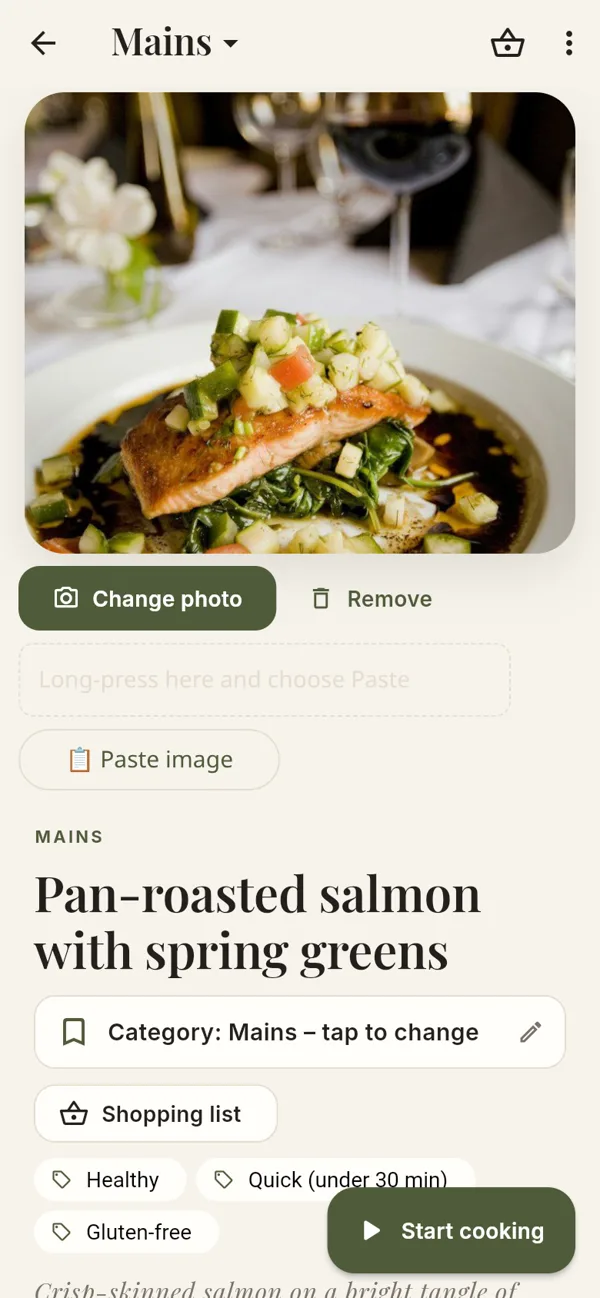
Every recipe, beautifully kept – screenshot of the app

Every recipe, beautifully kept

Save recipes from almost any website, plus Pinterest pins and Instagram, TikTok and X posts. Scan a page from a cookbook, paste the text or write your own. Photos, tags and notes included.
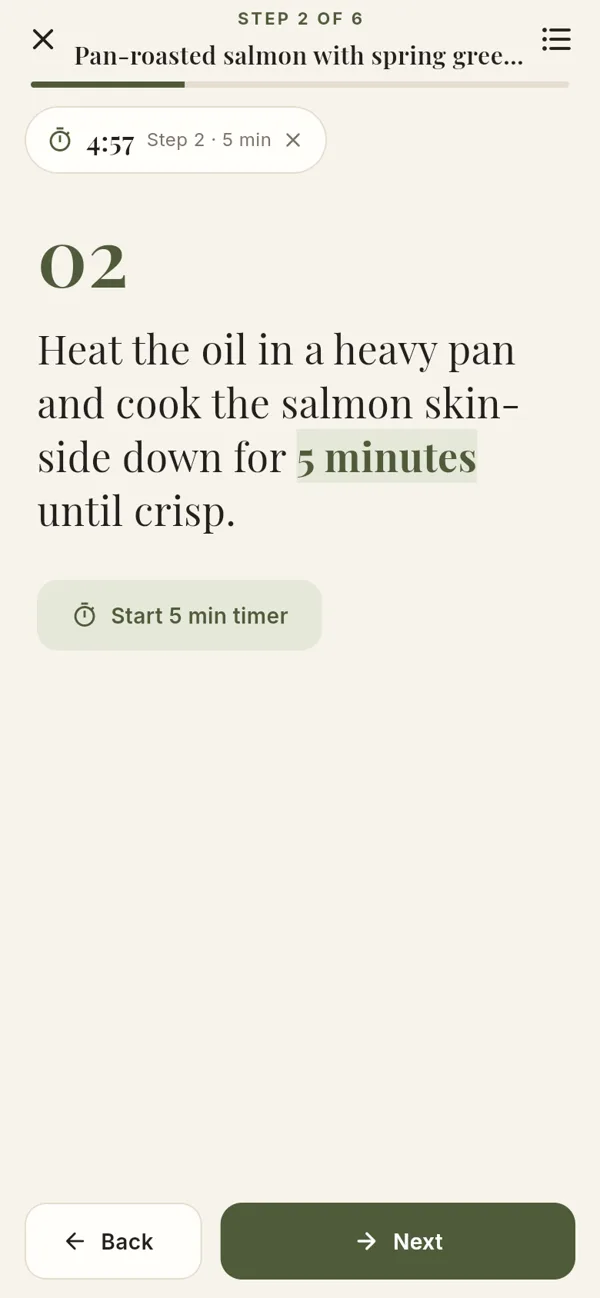
Cooking mode with timers – screenshot of the app

Cooking mode with timers

One big step at a time, with the times in each step turned into tap-to-start timers.
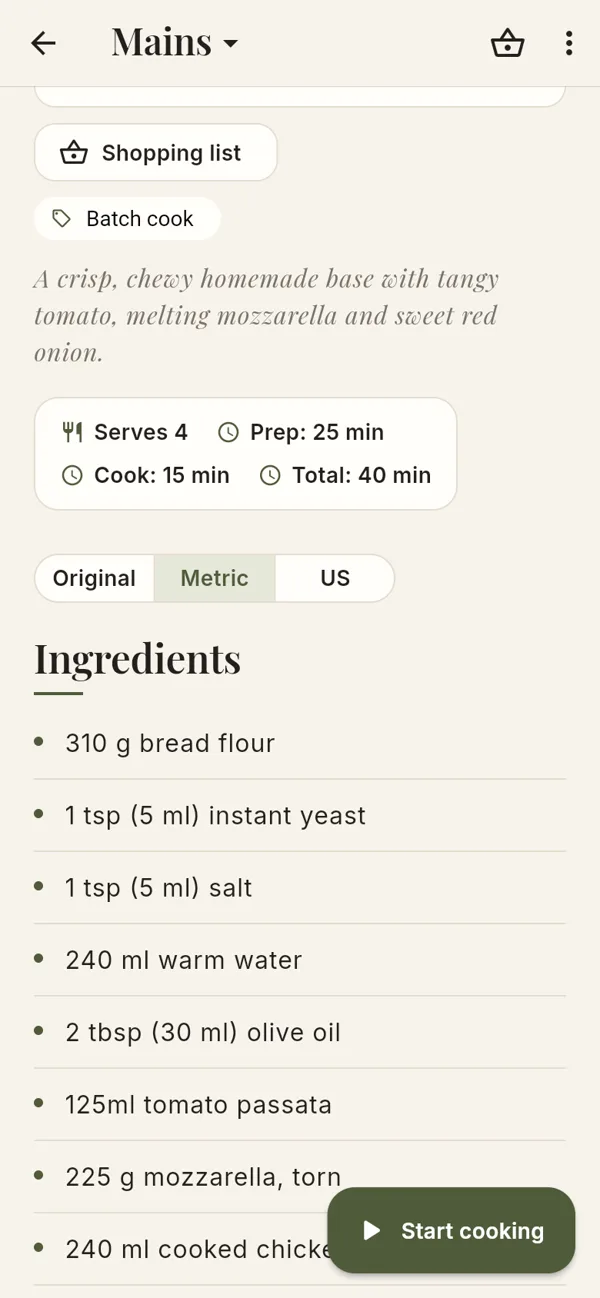
Original, Metric or US – screenshot of the app

Original, Metric or US

Cups to grams, °F to °C with the gas mark, and millilitres added to spoons. Your recipe stays as written.
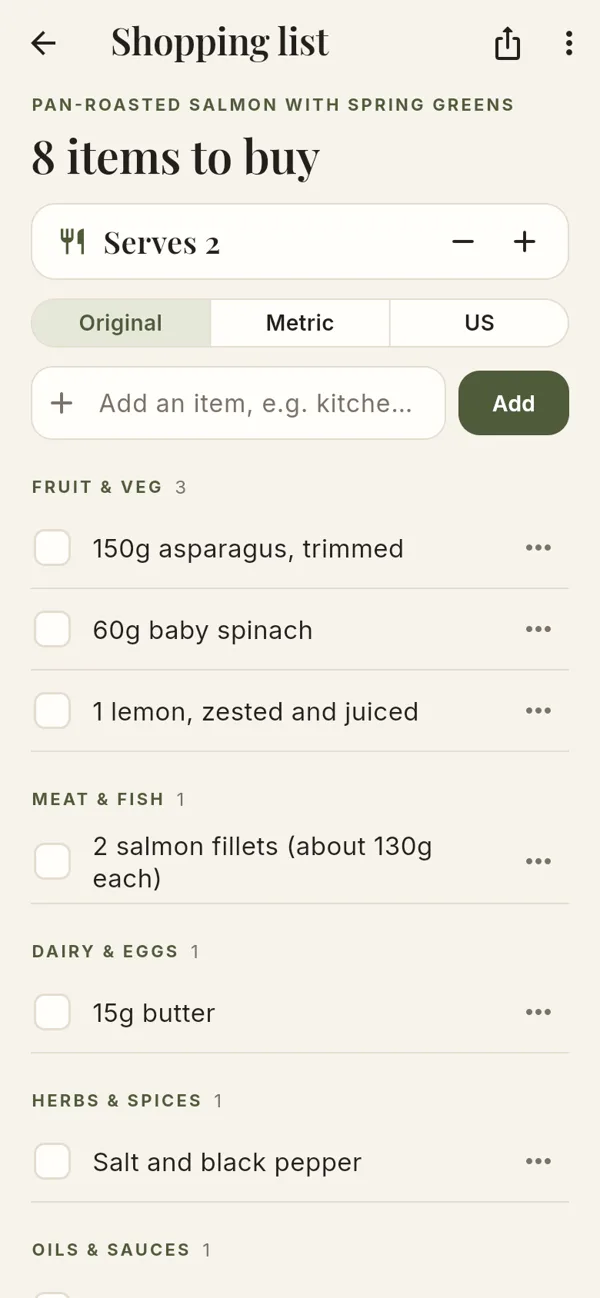
A shopping list by aisle – screenshot of the app

A shopping list by aisle

Scaled to your servings and grouped the way a supermarket is laid out. Tick things off as you go.
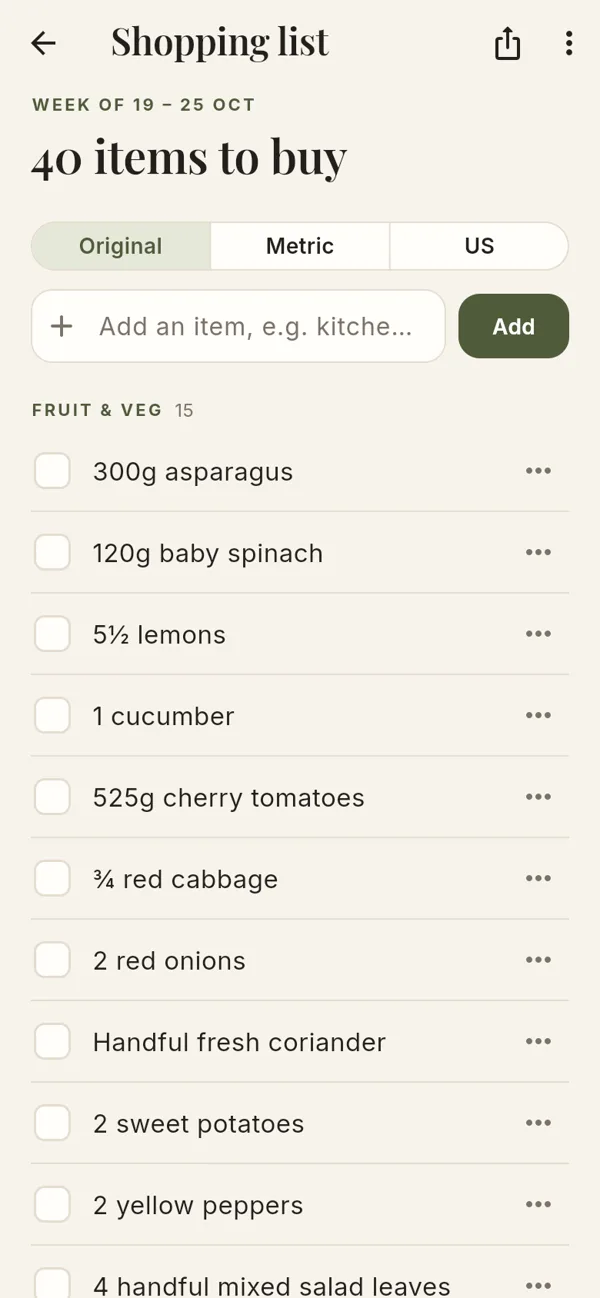
Plan the week – screenshot of the app

Plan the week

Breakfast, lunch and dinner for each day, then one shopping list for the whole week.
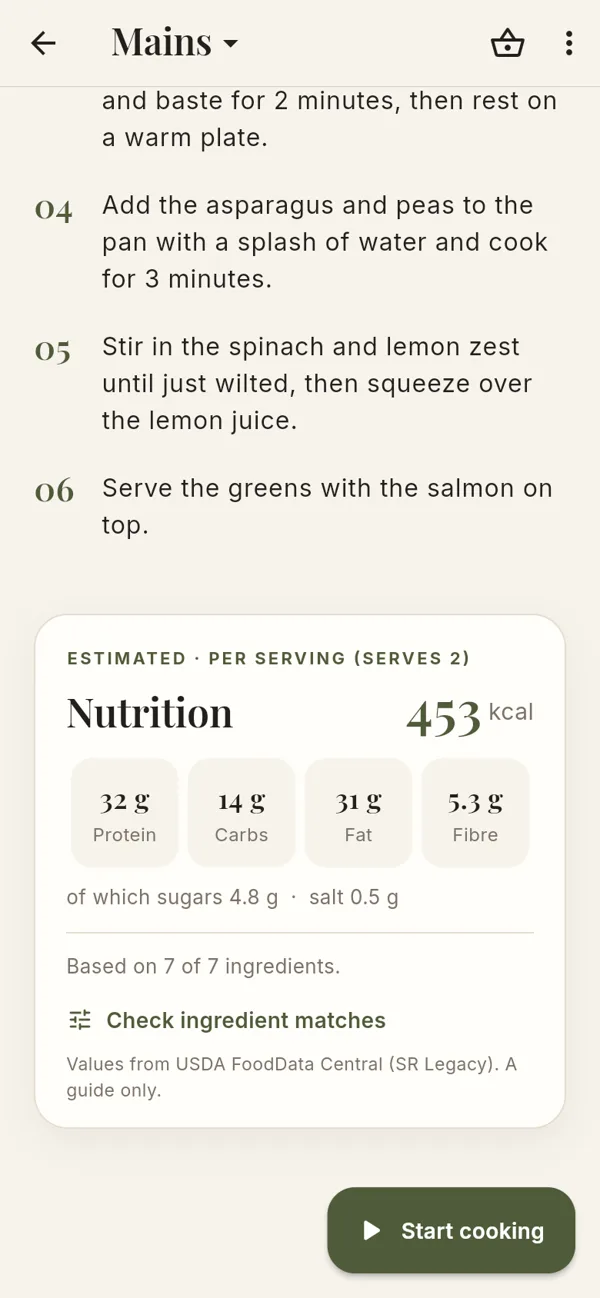
Nutrition per serving – screenshot of the app

Nutrition per serving

Calories, protein, carbs, fat, fibre, sugars and salt, from the recipe or estimated from its ingredients.

How it works

Three simple steps

Most recipes are saved in a few seconds.

  1. Copy a link

    Find a recipe on a website, Pinterest, Instagram, TikTok or X and copy its link. Or copy its text, or photograph a page from a cookbook (read on your device, never uploaded).

  2. Paste it in

    Link to Table reads the title, photo, ingredients and steps, and suggests a category. Check it over and save.

  3. Cook, shop, plan

    Switch units, start cooking mode with timers, make a shopping list or add it to this week's plan.

Help guide

How to use Link to Table

Tap a topic to open it. You'll find the same guide inside the app, under Help.

Getting started
  • Open the web app in Safari on your iPhone or iPad: https://recipe-box-8g1.pages.dev
  • To use it like a proper app, add it to your home screen: in Safari tap the Share button (the square with an arrow), scroll down and choose Add to Home Screen, then Add. It opens full screen, without Safari's address bar.
  • Your recipes are saved on the device you're using. To move them to another device, see "Backup and restore".
  • To add a recipe on iPhone, tap the round + button at the bottom right and choose how: Add from link, Paste recipe text, Write my own recipe or Scan a recipe. On iPad and computers the same four choices are buttons along the bottom of the screen.
Adding a recipe from a link
  • On the home screen tap + (iPhone) and choose Add from link, or tap Add from link at the bottom (iPad). Paste the web address of a recipe and tap the button to read it.
  • The app reads the recipe details that most recipe websites include: title, photo, ingredients, method, servings and times. It also guesses a category (a dish like "chicken fried rice" counts as a main, while "coconut rice" counts as a side). Check everything on the preview, change the category or add tags if you like, then save.
  • Pinterest: paste a pin.it short link or a pinterest.com /pin/ link. The app finds the website the pin links to and imports the recipe from there. If the pin is only a picture, you get a guided screen with the pin's description and photo already filled in.
  • Instagram, TikTok and X (Twitter): paste the post's link (Instagram /p/ or /reel/, a TikTok video or short link, or an x.com / twitter.com /status/ link). The app reads the caption and picture. If the caption links to a recipe website, it imports from there; if the recipe is written in the caption, it opens it for you to check, with a tidy title (bits like "How to make" or "@name" are left out). Otherwise a guided screen shows you how to copy the caption in that app, and tells you when the recipe is "in their bio".
  • Facebook: Facebook only shows posts to people who are logged in, so the app can't read them from a link. If you paste a Facebook link, the app takes you to Paste recipe text. In Facebook, tap "See more", press and hold the post text, choose Copy, then paste it in.
Pasting recipe text
  • On the home screen tap + and choose Paste recipe text (on iPad, tap Paste recipe text at the bottom). Copy a recipe from anywhere (a website, an email, a social media post or a note) and paste it in.
  • The app works out the title, ingredients and steps, even from posts with emojis and hashtags. You can fix anything on the next screen before saving.
Scanning a recipe from a book
  • On the home screen tap + and choose Scan a recipe (on iPad, tap Scan a recipe at the bottom). Tap Take a photo to use the camera, or Choose photos to pick one or more pictures you've already taken. A recipe that runs over two pages can be added as two photos, in order.
  • For the best results, lay the book flat in good light, avoid shadows across the page and fill the screen with the recipe.
  • If the photo shows two pages or two recipes, tap Crop and drag the box around the recipe you want (or tap Left half or Right half).
  • It's fine to turn your phone or iPad sideways to fit the whole page in. The app works out which way up the words are and turns the page for you. If it ever gets it wrong, tap Turn next to the photo (or Turn page on the crop screen) and read it again.
  • Printed recipe web pages work too. Extras like the author, star ratings, course and cuisine labels, the nutrition panel and the web address are left out.
  • Tap Read the recipe. The first time takes a little longer while the reader gets ready. You can then correct the text the app read, and tap Check and save to see the recipe laid out before saving.
  • Switch on Use the first photo as the recipe photo if you'd like the page itself as the recipe's picture.
  • Your photos are read on your device. They aren't sent anywhere.
  • Printed recipes work best. Handwriting, especially joined-up writing, often can't be read, so type those in with Write my own recipe.
Writing your own recipe
  • On the home screen tap + and choose Write my own recipe (on iPad, tap Write my own recipe at the bottom). Type a title, the ingredients (one per line) and the steps. The app suggests a category, which you can change.
Photos
  • Use Add photo (or Change photo) on a recipe to take a picture with the camera or choose one from your photo library. On iPhone, Safari offers both options.
  • You can also copy a picture and paste it: press and hold the paste box and choose Paste, or use the Paste image button.
  • Photos are shrunk automatically so they don't fill up your device. Photos that came from websites are copied onto your device when you save, so they keep working even if the website's link stops working.
Editing and notes
  • On a recipe, tap ⋮ then Edit recipe to change the title, servings, ingredients, steps, photo, tags and your own notes (for example "used less chilli").
  • When you finish cooking mode, you can also save a dated note to the recipe.
  • ⋮ also has Change category, Add to meal plan and Delete (it asks first).
Categories and tags
  • Categories: Breakfast, Starters, Soups, Salads, Mains, Sides, Sauces & Dressings, Baking, Desserts, Snacks and Drinks. Tap a category chip on the home screen to show only those recipes, or change a recipe's category from its page.
  • Tags: choose ready-made ones (Vegetarian, Vegan, Quick, Batch cook, Gluten-free, Healthy) or type your own when saving or editing. Tag chips on the home screen filter your recipes.
Searching
  • Type in the search box on the home screen to find recipes by ingredient, title or tag, for example "chicken lemon". Every word must match. Recipes that contain the words as ingredients come first. "Tomato" also finds "tomatoes".
Servings and nutrition
  • In cooking mode and on the shopping list, use − and + next to the servings to scale the amounts.
  • The nutrition card on a recipe shows calories, protein, carbs, fat, fibre, sugars and salt per serving. It uses the website's own figures when it gives them; otherwise it's an estimate from the ingredients (based on USDA food data).
  • If an ingredient couldn't be counted, the card lists it. Tap Fix to pick the right food, enter the grams, or choose "Don't count".
Units: Original, Metric and US
  • Use the Original / Metric / US switch on a recipe, in cooking mode, on the shopping list or in Settings. Your choice is remembered. Only what's shown on screen changes; the saved recipe stays as written.
  • Metric turns cups, ounces and pounds into millilitres and grams (cups of flour, sugar and so on use proper weights), °F into °C with the gas mark added, and inches into cm. Spoons stay as spoons, with the millilitres added, for example "3 tbsp (45ml)". Weights and volumes are written the British way, such as "455g", "240ml" or "1.5 litres".
  • US turns grams and millilitres into ounces, pounds, cups and spoons, and °C into °F.
  • If there's nothing to convert (for example "juice of 2 limes"), the recipe tells you so.
Cooking mode and timers
  • Tap Start cooking on a recipe. You start with a tick list of ingredients (with servings), then get one large step at a time. Swipe, or use Back and Next.
  • When a step mentions a time, tap Start N min timer. Timers stay at the top of every step and beep when they finish. Tapping a timer that's already running won't start a second one. You can open the ingredients from any step. On iPad and in landscape, they show beside the step.
  • The app tries to keep the screen on while you cook, and tells you if your browser can't.
  • On iPhone and iPad: keep the app open on screen while a timer runs. Safari may pause web apps in the background or when the screen locks, so a timer may not beep until you come back. The beep needs the sound turned on, and vibration isn't available on iPhone.
Shopping list
  • On a recipe, tap Shopping list (or the basket icon). Items are grouped by supermarket aisle and scaled to your servings.
  • Tick items as you shop; they move to "In your basket". You can hide pantry staples (salt, pepper, oil, water), add your own items, change an item's aisle, delete items (and bring them back), clear ticks, and share or copy the list.
  • Your ticks and changes are saved for each recipe.
Meal planner and weekly shopping list
  • Tap the calendar icon on the home screen. Each week runs Monday to Sunday, with breakfast, lunch, dinner and "Other" for each day. Use the arrows to change week.
  • Add a meal with + on a day, or from a recipe's ⋮ › Add to meal plan, and choose the servings. Tap a planned meal to open it, move it, change its servings or remove it.
  • Shopping list for this week adds up the same ingredients across all the week's recipes and opens a normal shopping list. For example, "1 large onion" and "1 onion" become "2 onions (1 large)", and fillets add up as "3 salmon fillets".
Sharing recipes and lists
  • On a recipe, tap the Share icon (the box with an arrow) at the top. Choose Share recipe to open your phone's share sheet – WhatsApp, Messages, Mail, AirDrop and more. It sends the recipe as tidy text: title, servings, times, ingredients (in your current units choice), method, and your notes if you switch Include my notes on. Where your phone allows it, the photo goes too.
  • Anyone with Link to Table can copy the shared text and paste it into Paste recipe text – it comes back in neatly.
  • Share as recipe file sends a small file for friends who use Link to Table. They save it, then go to Settings › Restore a backup or add a recipe file and choose it. It's added alongside their recipes; nothing of theirs is changed.
  • On a shopping list (for one recipe or the whole week), tap Share to send the items you still need, grouped by aisle with tick boxes – handy for whoever is doing the shop.
  • If your browser has no share sheet (some computers), the text is copied instead, ready to paste.
Using the app offline
  • Once you've opened the app with an internet connection, it keeps a copy of itself on your device, so it opens and works without the internet: your recipes, search, cooking mode and timers, shopping lists, the meal planner, help and backup all work offline.
  • Adding a recipe from a link or a social media post needs the internet. If you're offline, the app says so; try again when you're connected, or use Paste recipe text or Write my own recipe instead.
  • Scanning needs the internet the first time only, to download the text reader (about 7 MB). After one scan, scanning works offline too.
  • Recipe photos you've saved on the device show offline. Photos that still point at a website may not, so use Settings › Storage › Save web photos on this device before you travel.
  • Updates: when a new version is ready, a "New version available" message appears at the top. Tap Update to switch now, or carry on and it updates the next time you open the app.
  • Home Screen app on iPhone and iPad: the app on your Home Screen keeps its own recipes and offline copy, separate from Safari. Open it once with an internet connection so it's ready for offline use (and after an update). If you used Safari before adding it to your Home Screen, move your recipes across with a backup.
Backup and restore (moving recipes between iPhone and iPad)
  • Open Settings (the cog on the home screen) and tap Back up N recipes. This saves one file with every recipe, photo, tag, note, shopping list, meal plan and your units choice. On iPhone choose Save to Files (iCloud Drive is a good place), or AirDrop it.
  • To move recipes to your iPad (or a new phone), open the app there, go to Settings › Restore a backup or add a recipe file and choose the file. You can merge it with what's already there (keeping or replacing duplicates) or replace everything. The app asks before changing anything.
  • The app reminds you if you haven't backed up for 14 days. Back up regularly: it's your safety net if a device is lost or the browser's data is cleared.
Storage
  • Settings › Storage shows how much space the app is using and how much room the browser allows. It warns you when space is running low.
  • Shrink large photos makes existing photos smaller to save space. Save web photos on this device copies any photos that still point at websites.
  • Your recipes are kept in the browser's own database on this device. The app asks the browser to keep them, but the browser can still clear them if the device runs very low on space, so keep backing up.
Questions and troubleshooting
  • A website won't import. Some sites block apps from reading their pages, or don't include recipe details. Open the recipe in Safari, select and copy the text, and use Paste recipe text.
  • A scanned recipe came out jumbled. Crop to just the one recipe, retake the photo straight on in brighter light, then fix any small mistakes in the text before you tap Check and save. Fractions such as ½ and ¾ are worth a quick check.
  • A Facebook post won't import. That's expected: Facebook needs you to be logged in. Copy the post text and use Paste recipe text.
  • An Instagram or TikTok post only gave me part of the recipe. Follow the steps on the guided screen to copy the full caption. If the caption says "link in bio", open their profile, copy the website link and use Add from link.
  • The units switch doesn't seem to change anything. That recipe's amounts may already be in those units, or written without units (like "2 limes"). The recipe shows a note when there's nothing to convert.
  • I don't see the latest version. Close the app fully (swipe it away from the app switcher) and open it again. If it still looks old, do it once more.
  • My timer didn't beep. Keep the app on screen with the sound on while a timer runs (see "Cooking mode and timers").
  • Will my recipes sync between devices automatically? Not yet. Use backup and restore to move them.
Link to Table app icon
Coming soon to the App Store

Start your collection today

Link to Table is free to try in Safari right now. Add it to your home screen and it works just like an app.

Open the web app